
How to Move WhatsApp Chats from Android to iPhone easily (Step-by-Step Guide)

Switching from Android to iPhone doesn’t mean you have to lose your precious WhatsApp chats and memories. Thanks to WhatsApp’s official migration feature, you can now securely transfer your messages, media, and settings between the two platforms with just a few simple steps.
In this guide, we’ll walk you through everything you need to know to move your WhatsApp chats from Android to iPhone—what you’ll need, how the transfer works, and what data comes along for the ride.
Why You Might Want to Transfer WhatsApp Chats
When upgrading to a new phone, many users worry about losing their WhatsApp conversations—whether it’s personal messages, work groups, or shared media. WhatsApp’s transfer feature makes it easy to carry your chat history, photos, and even group chats from your old Android device to your new iPhone, ensuring a smooth transition without data loss.
What You Can and Cannot Transfer
Before you begin, it’s important to know exactly what moves with you—and what doesn’t.
✅ You Can Transfer:
- Account information
- Profile photo
- Individual chats and group chats
- Communities and WhatsApp Channels updates
- Chat history, photos, videos, and other media
- App settings
🚫 You Cannot Transfer:
- WhatsApp call history
- Display name
- Media received through WhatsApp Channels
💡 Note: This migration feature currently works only for personal WhatsApp accounts. It’s not yet available for WhatsApp Business users.
What You’ll Need Before You Start
To ensure a smooth transfer, make sure both devices meet the following requirements:
📱 Device and Software Requirements
- Android: OS Lollipop (SDK 21) or higher (Android 5 or above).
- iPhone: iOS 15.5 or later installed.
- Apps:
- Install the Move to iOS app on your Android device.
- Install the latest version of WhatsApp on both devices (from Google Play Store and App Store respectively).
⚠️ Important: Using third-party data transfer apps is not supported and may cause issues during migration.
🔋 Power and Connectivity
- Keep both devices connected to power throughout the process.
- Ensure both are connected to the same Wi-Fi network, or connect your Android to your iPhone’s hotspot.
📞 Phone Number
Use the same phone number on your iPhone that you used on your Android device.
🔄 Factory Reset Requirement
Your iPhone must be factory new or reset to factory settings before starting. This allows it to pair correctly with the Move to iOS app for data transfer.
Step-by-Step: How to Transfer WhatsApp Chats from Android to iPhone
Follow these steps carefully to complete the migration successfully.
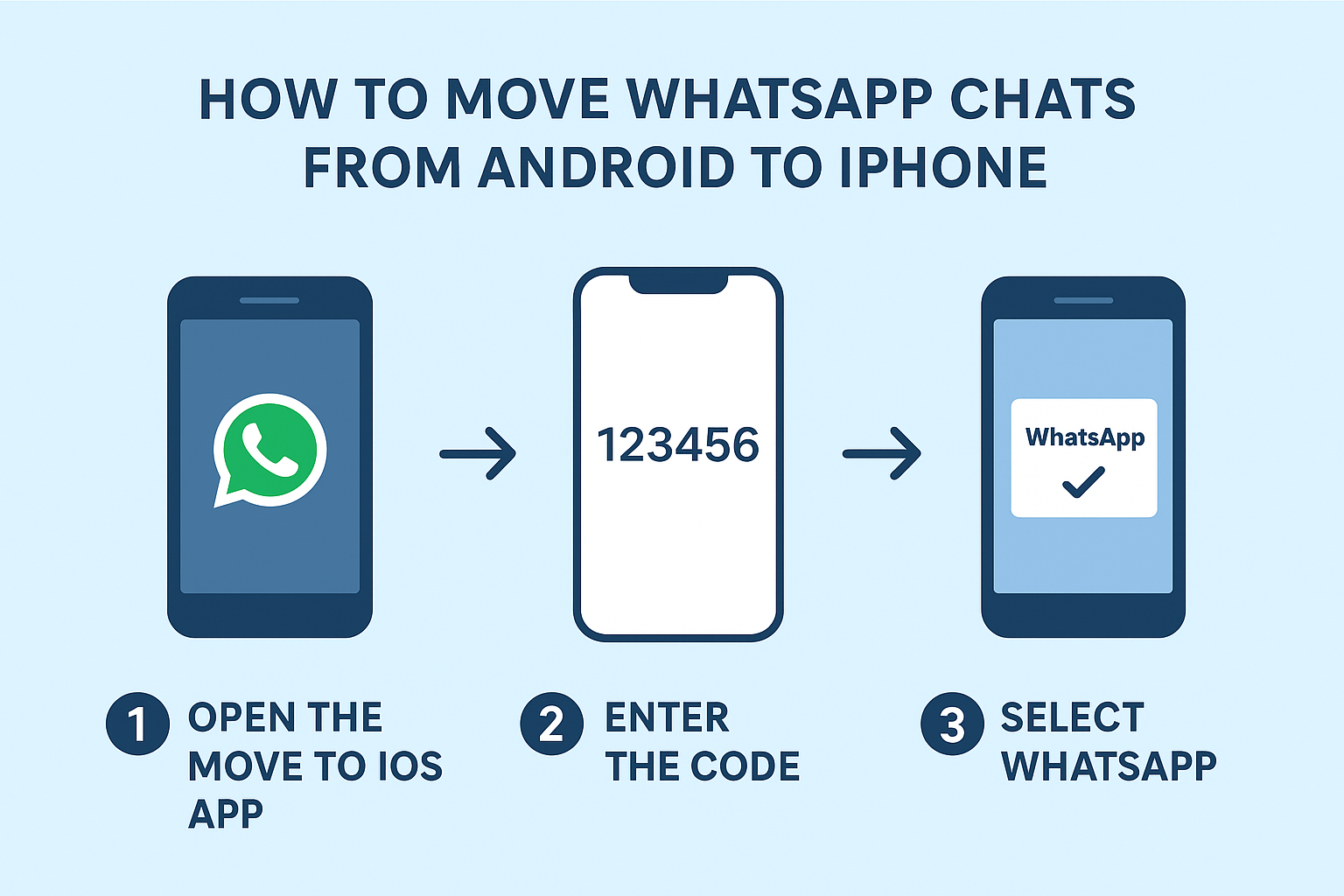
Step 1: Open Move to iOS on Android
On your Android phone, launch the Move to iOS app and follow the on-screen prompts.
Step 2: Pair Your Devices
A unique code will appear on your iPhone.
When prompted on your Android phone, enter this code to establish a secure connection between the two devices.
Step 3: Prepare WhatsApp Data
Once connected, select WhatsApp from the “Transfer Data” screen.
Tap Start on your Android phone. WhatsApp will begin preparing your chat data for export.
You’ll be automatically signed out from WhatsApp on your Android device once preparation is complete.
Step 4: Begin the Transfer
Tap Next to return to the Move to iOS app, then tap Continue to start the actual transfer.
Wait for the confirmation message indicating that the process is complete.
Step 5: Set Up WhatsApp on iPhone
Now, download the latest version of WhatsApp from the App Store.
Open the app and log in using the same phone number you used previously.
When prompted, tap Start and allow WhatsApp to finalize the transfer.
Once complete, finish setting up your iPhone—you’ll now see all your old chats waiting for you!
🔍 Note: Don’t try to manually access WhatsApp folders from the Move to iOS app—this isn’t supported and may interrupt the migration.
What Happens to Your Data During Transfer
One of the best parts of this process is how secure it is.
- Your transferred data is not uploaded to the cloud during migration—it moves directly between your devices.
- WhatsApp cannot see or access the data you transfer.
- Your Android phone will still keep a copy of your chat history until you delete WhatsApp or perform a factory reset.
💾 After migration, you can back up your chats to iCloud for ongoing data protection.
What Types of Messages Can Be Transferred
You can migrate almost all personal messages from Android to iPhone, including:
✅ Transferable:
- Personal one-on-one chats
- Group conversations
- Shared media and files
🚫 Not Transferable:
- Peer-to-peer payment messages
- WhatsApp call logs
Unfortunately, WhatsApp call history cannot be moved between operating systems, so you’ll start fresh with your call records on your iPhone.
Troubleshooting Tips
If something doesn’t go as planned:
- Make sure both phones are on compatible versions of Android and iOS.
- Double-check that you’re using the same phone number on both devices.
- Verify that you’re using the Move to iOS app—not a third-party alternative.
- Keep both devices close together and connected to the same network.
If migration still fails, restarting both phones and trying again usually helps.
FAQs About WhatsApp Chat Transfer
1. Can I transfer WhatsApp from Android to iPhone after setup?
No. The transfer only works during the iPhone’s initial setup phase. You’ll need to reset the iPhone to factory settings if it’s already configured.
2. Will I lose my WhatsApp groups or photos?
No. All your chats, groups, and media files will appear on your new iPhone just as they were on your Android device.
3. Can I use Google Drive backup for iPhone restore?
No. iPhones use iCloud for WhatsApp backups, while Android uses Google Drive, and the two systems are not compatible for this purpose.
4. can i transfer chat from ios to android?
Answer is , of course you can transfer chat from ios to android . here is complete guide
Transferring your WhatsApp chats from Android to iPhone no longer has to be a headache. With WhatsApp’s official migration feature, you can bring along your entire conversation history, photos, and settings in a few simple steps.
Wrapping Up: A Smooth Transition to iPhone
Just remember to:
- Use the Move to iOS app,
- Keep both devices connected and charged,
- And log in with the same phone number.
In minutes, your WhatsApp experience continues seamlessly on your new iPhone — with your memories, chats, and contacts all intact.
[…] How to Transfer WhatsApp Chats from Android to iPhone easily […]